dewyser.net

solutions, scripting and more

Setting up Carbon Black sensor gateway appliance — 29th Nov 2023

Setting up Carbon Black sensor gateway appliance

First thing is to do a little preparation. In Carbon Black Cloud console you’ll need to set up an API key so the appliance can communicate with the cloud console.

Go to Settings > API Access and select “Add API Key”. Set the access level to custom and select Sensor Gateway from the custom access level drop down list:
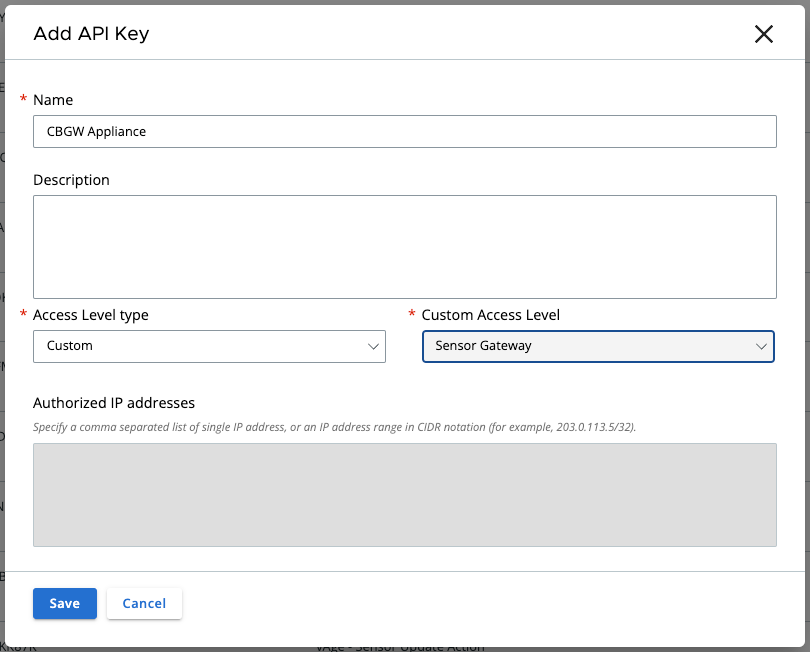
Save the information as we’ll need it later.

Next is to generate a certificate that will be used on the appliance. You can skip this part if you use self-signed certificates instead but if you go with certificates you’ll the certificate in pem format with private key file and also the full chain, so including the appliance certificate.

Now we can deploy and configure the virtual appliance. For the CBC URL you can find the necessary information here: https://developer.carbonblack.com/reference/carbon-black-cloud/authentication/#hostname. The API ID and secret you saved before.
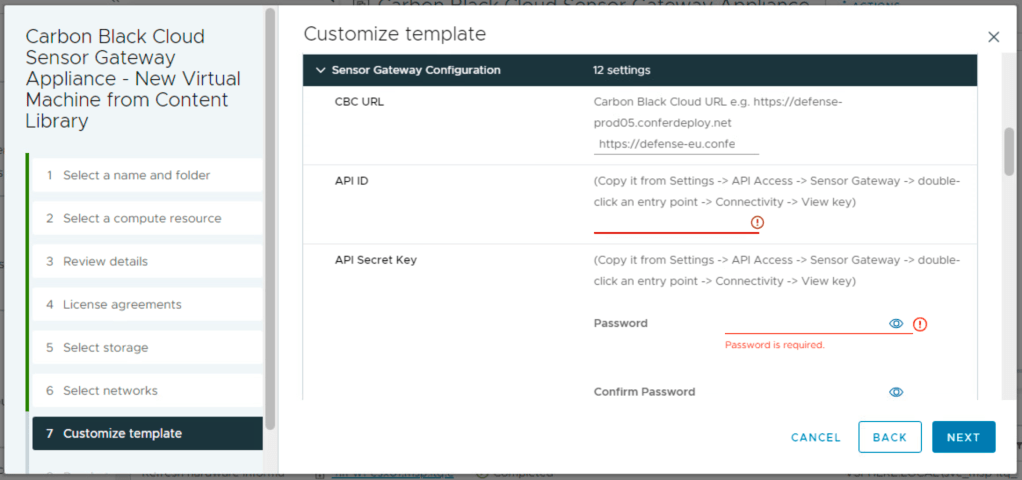
The entry point is the FQDN (preceded by https://) of the appliance (this information must match the certificate common name or san). The certificate line accepts more then just one line of data. You can put in the data from the pem certificate file. Same for the private.
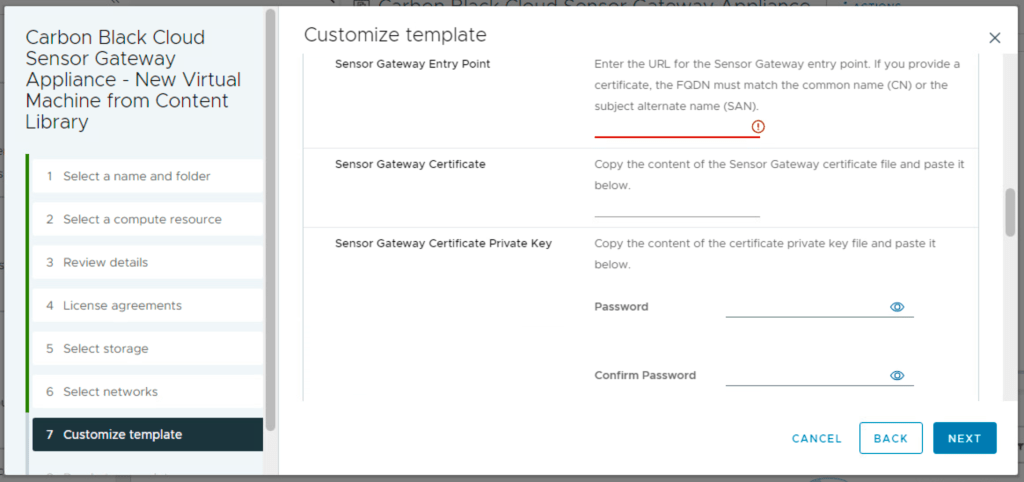
Remember in the certificate chain put the full chain, so the certificate again and then intermediate (if used) and the root certificate. Passphrase is used if the certificate is encrypted with a password.

Last thing before deployment is the network information part.
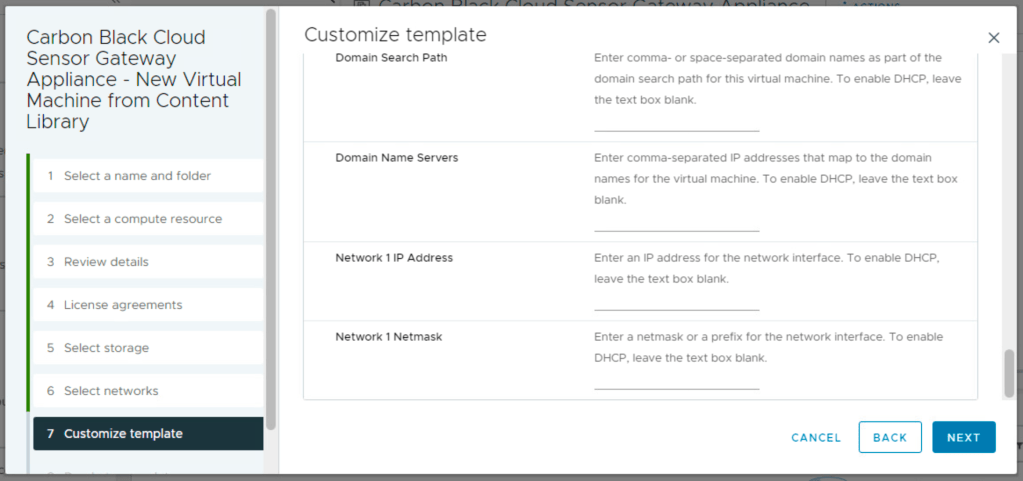
After you boot the appliance you will see that it registers itself in the Carbon Black Cloud console under Settings > API Access > Sensor Gateways.

Now for the installation part of the sensors. You’ll see that you now have an option to generate a registration key through a Sensor Gateway. All devices installed with this new key will connect threw the Sensor Gateway Appliance instead of registering directly to Carbon Black Cloud console.

Certificates (in the home lab) made easy – running vCenter Certificate Manager — 24th Aug 2023

Certificates (in the home lab) made easy – running vCenter Certificate Manager

Next is running vCenter Certificate Manager to replace the certificates. Log into vCenter Appliance using ssh and run the following command and select option 2 to replace VMCA root certificate with custom signing certificate and replace all certificates.

/usr/lib/vmware-vmca/bin/certificate-manager

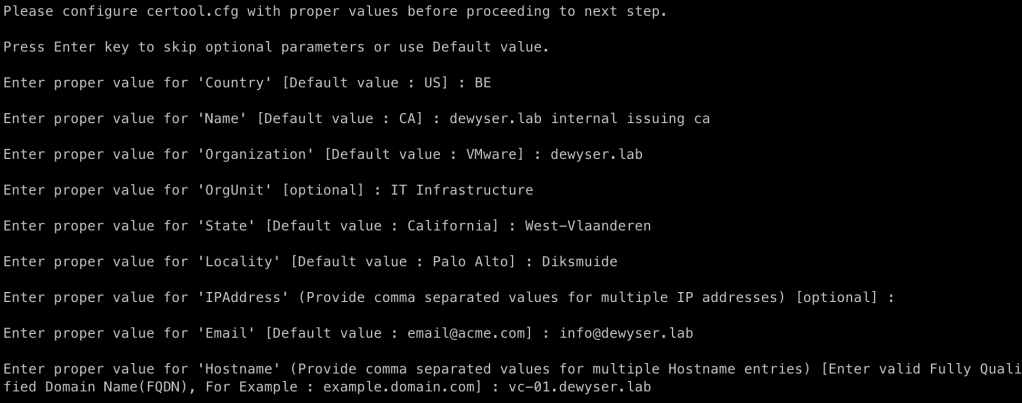
Select Yes to generate all certificates using configuration file. Supply credentials and input values:

Use option 2 to import custom certificate(s) and key(s). Provide the file location of the two files:

Continue the operation using the option Y and wait for completion:

Certificates (in the home lab) made easy – moving the chain and the key into vCenter appliance —

Certificates (in the home lab) made easy – moving the chain and the key into vCenter appliance

For the next part we need two files, one is the chain.pem file from the previous part. The other is the private key from the issuing certificate authority.

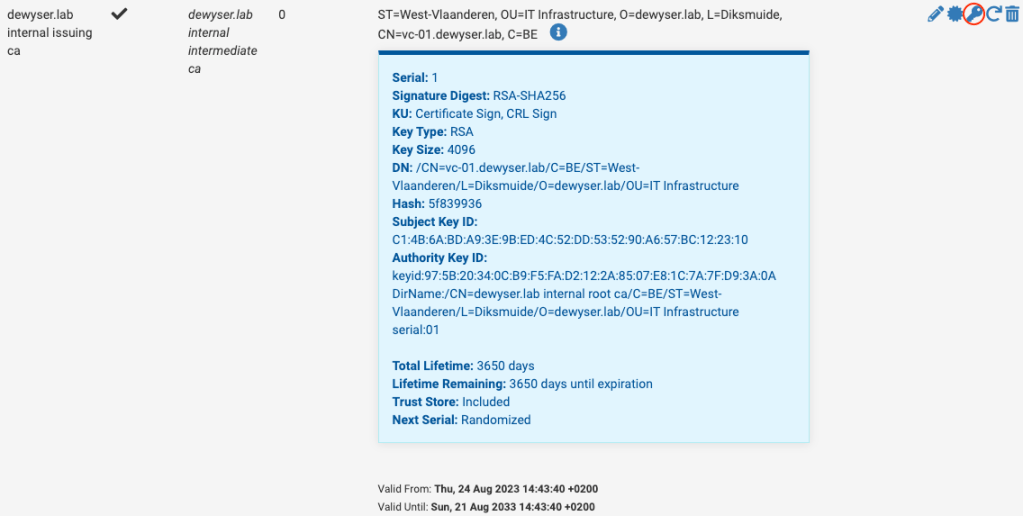
If we go back to our pfSense console administrator and head to System > Certificate Manager under CAs we find our certificate for the issuing authority.

Using the key icon, marked in red in the image above we can export the private key of this certificate. Keep this safe as these key allows for the signing of new certificates.

Now we need to copy these two files to our vCenter Appliance. This can be done with scp on macOS using the following command:

scp ./chain.pem root@vc-01.dewyser.lab:/tmp/chain.pem
scp ./issuing.key root@vc-01.dewyser.lab:/tmp/issuing.key

With a successful copy we are ready for the next part.

Note: Depending on your security settings you would need to allow ssh/bash shell for your vCenter appliance. You can allow this using the VMware Appliance Management Interface (VAMI) https://vcenter-fqdn:5480/

Certificates (in the home lab) made easy – the issuing CA —