dewyser.net

solutions, scripting and more

Documenting, love it or hate it … (Part 1) — 7th Nov 2022

Documenting, love it or hate it … (Part 1)

In the next series you will see how we can use the VMware Horizon API in combination with some Powershell modules to document the environment.

Part 1: Installing the necessary Tools and Powershell modules

First we need to install Powershell. There or several ways to do so but I tend to turn to Homebrew whenever I can.

Brew Install --cask powershell

PScribo: PScribo provides a set of functions that make it easy to create a document-like structure within Powershell scripts without having to be concerned with handling output formatting or supporting multiple output formats.

Install-Module PScribo  

Next we will need the VMware modules. With the following command you get a list of the possibilities:

Find-Module -name VMware.*

We only need the one for VMware Horizon for now, let’s install it:

Install-Module VMware.VimAutomation.HorizonView

That’s all for now. In part 2 of the series we will set-up the credential and connect to the Horizon API.


Upgrading VMware Tools on host — 12th Jun 2022

Upgrading VMware Tools on host

In this case because of a CVE.

  • Download the VMware Tools packages from VMware Downloads.
  • Extract the VMware Tools packages
  • Copy the files (contents of folders floppies and vmtools) from the extracted location to the locker partition on the esxi host.

! If you haven’t enabled SSH, do so first.

scp -rp ./* root@<esxi-host>:/locker/packages/vmtoolsRepo

After copying the files the esxi shows that there is an update available.

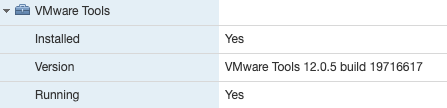
Expanding the VMware tools information shows the current version.

Open the guest options and choose to Upgrade VMware Tools.

After a reboot the information show the new version information.

If you are not using SSH you can disable it again.

VMware DEM printer assignments — 10th Jun 2022

VMware DEM printer assignments

The script below creates a xml for each printer on a print server. Just replace the flex path and printer server place holders.

Refresh DEM and edit the assignment conditions and you’re done.

$PrintServer = '<unc path print server>'
$FlexPath = '\\<unc path dem config server>\general\FlexRepository\Printer\'
 
$Printers = Get-Printer -ComputerName $PrintServer | Where Name -ne 'Microsoft XPS Document Writer'
 
 
foreach($Printer in $Printers){
    [System.XML.XMLDocument]$XML = New-Object System.XML.XMLDocument
    [System.Xml.XmlWriterSettings] $XmlSettings = New-Object System.Xml.XmlWriterSettings
    [System.Xml.XmlWriter] $XmlWriter = [System.Xml.XmlWriter]::Create($XmlFile, $XmlSettings)
    [System.XML.XMLElement]$Root = $XML.CreateElement("userEnvironmentSettings")
   
    $XmlFile = $FlexPath + $Printer.Name + ".xml"
    $XmlSettings.Encoding = New-Object System.Text.UTF8Encoding($false)
   
    $XML.appendChild($Root)
 
    [System.XML.XMLElement]$Node1 = $Root.AppendChild($XML.CreateElement("setting"))
    $Node1.SetAttribute("type","Printer Mapping")
    $Node1.SetAttribute("async","1")
    $Node1.SetAttribute("remote","\\" + $PrintServer + "\" + $Printer.ShareName)
    $Node1.SetAttribute("default","1")
    $Node1.SetAttribute("label",$Printer.Name)
    $Node1.SetAttribute("undo","1")
   
    
    [System.XML.XMLElement]$Node2 = $Root.AppendChild($XML.CreateElement("conditions"))
 
   
    $XML.Save($XmlWriter)
}
Allowing VMware ovftool in macOS —

Allowing VMware ovftool in macOS

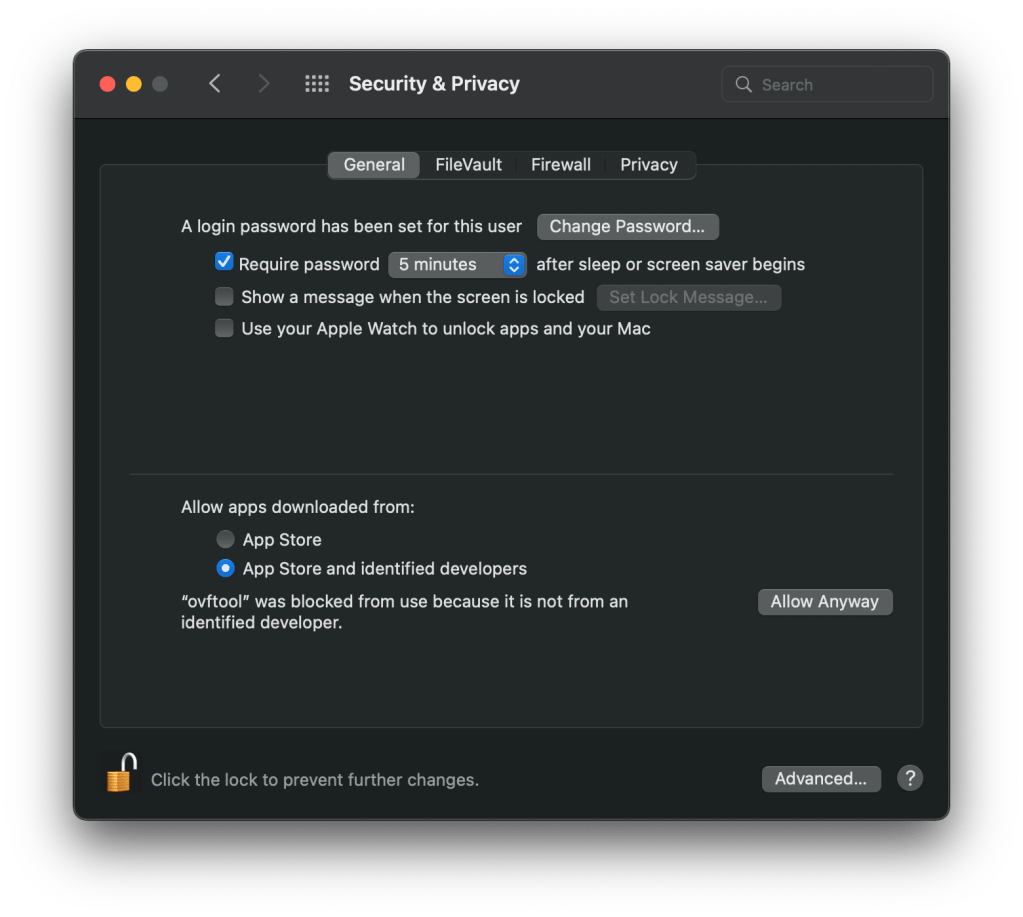
When trying to install VMware vCenter using a macOS device you get the above error. You could go to “Security & Privacy”and allow this for every single file or you could just disable the security feature during the installation.

Before mounting the ISO open a terminal window and navigate to the folder where you downloaded the iso. Use the following commands to first disable the security feature and then remove the quarantine attribute from the ISO.

sudo spctl --master-disable
sudo xattr -r -d com.apple.quarantine ./VMware-VCSA-all-7.0.3-18700403.iso

Now mount the ISO and start the installer.

When you’re finished don’t forget to enable the security again.

sudo spctl --master-enable
Edit local host file — 12th Nov 2021

Edit local host file

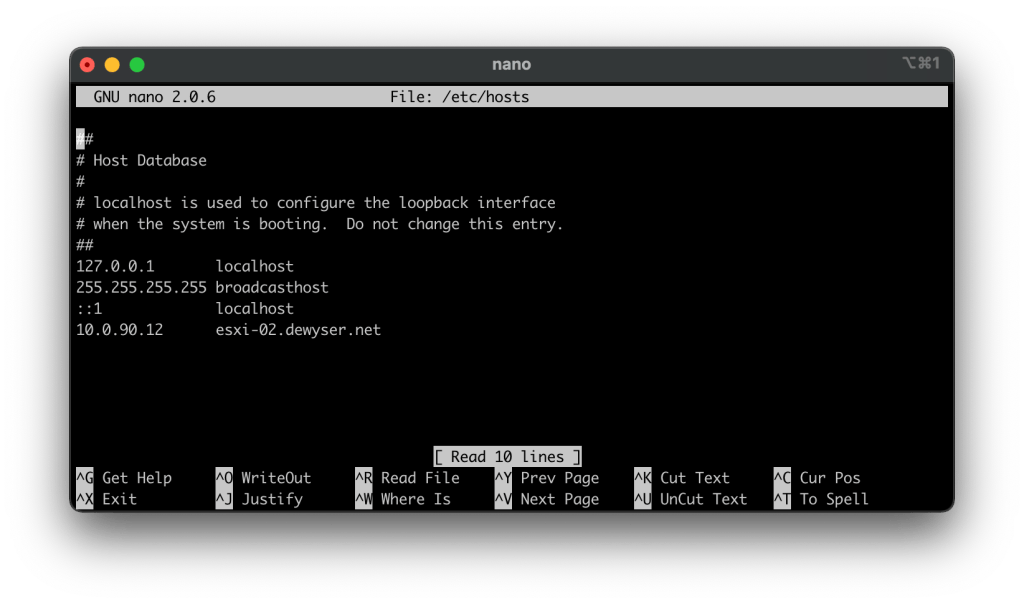
Before DNS is setup you can either work with IP addresses or edit your local host file. Open a terminal and type sudo nano /etc/hosts. Enter your password and start editing.

Add the corresponding information, IP address and hostname. Then press Ctrl+X to save your changes.

From now on you can use the hostname to connect to it.