dewyser.net

solutions, scripting and more

Linking ws1 access using SAML, just-in-time provisioning and a custom object for remote access level – part 2 of 2 — 21st Jul 2023

Linking ws1 access using SAML, just-in-time provisioning and a custom object for remote access level – part 2 of 2

Now that we are done on our side, the customer side is next. First step is to create a custom attribute that we used in our tenant to hold the static text. Goto settings > user attributes, add a row to the custom attributes and name it ExternalLevel.

Now allow just-in-time user provisioning by creating a new identity provider. Name the IdP and past in SAML metadata URL. Next Process IdP metadata.

Enable just-in-time provisioning and name your new directory.

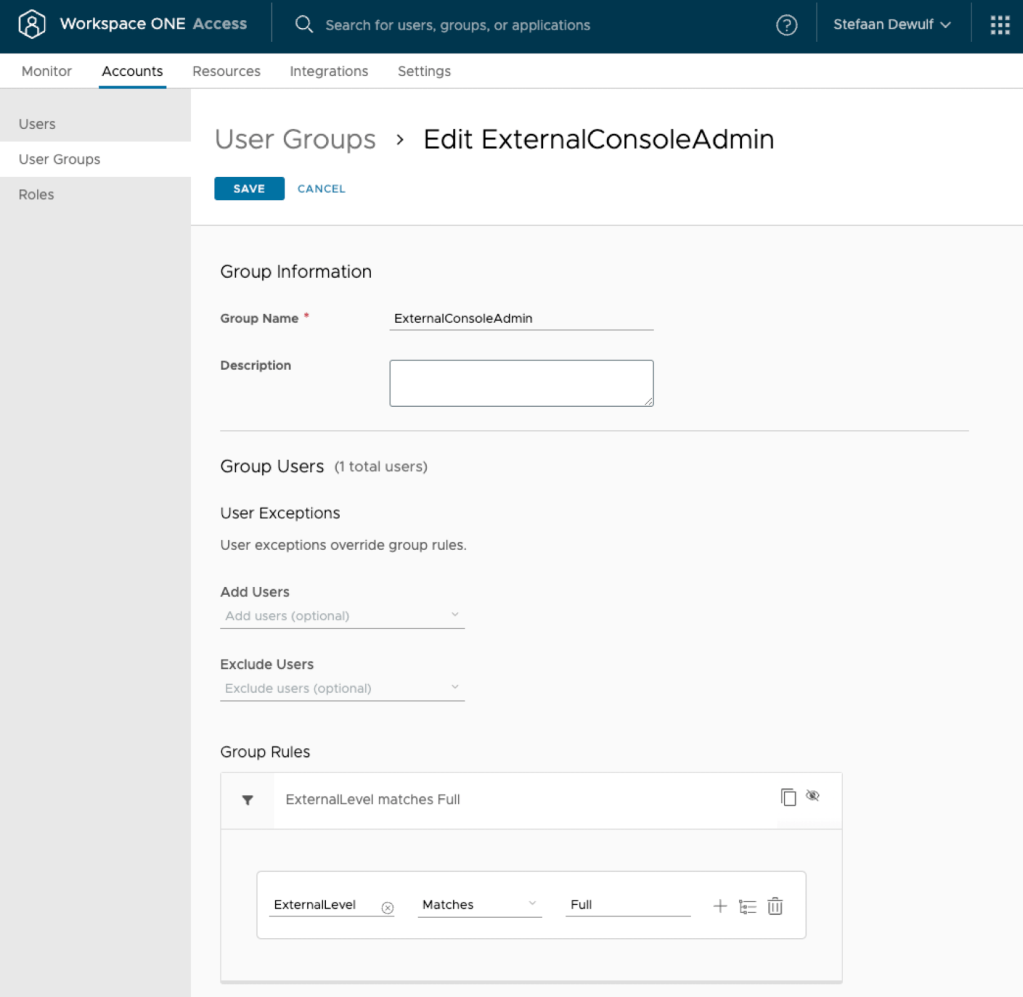
Next, create two groups and assign the correct roles based on the ExternalLevel attribute.
The final step, often forgotten, is to allow authentication using the new IdP in the necessary policy rules.

Linking ws1 access using SAML, just-in-time provisioning and a custom object for remote access level – part 1 of 2 —

Linking ws1 access using SAML, just-in-time provisioning and a custom object for remote access level – part 1 of 2

I recently had a project where I had to link our ws1 access tenant to multiple customer tenants. In its own not noteworthy and easily done with SAML. However, I wanted to set the access level in the customer tenant based on attributes in our own ws1 access tenant. So user 1, Debby would be a console administrator while user 2, Nancy would only have readonly access.

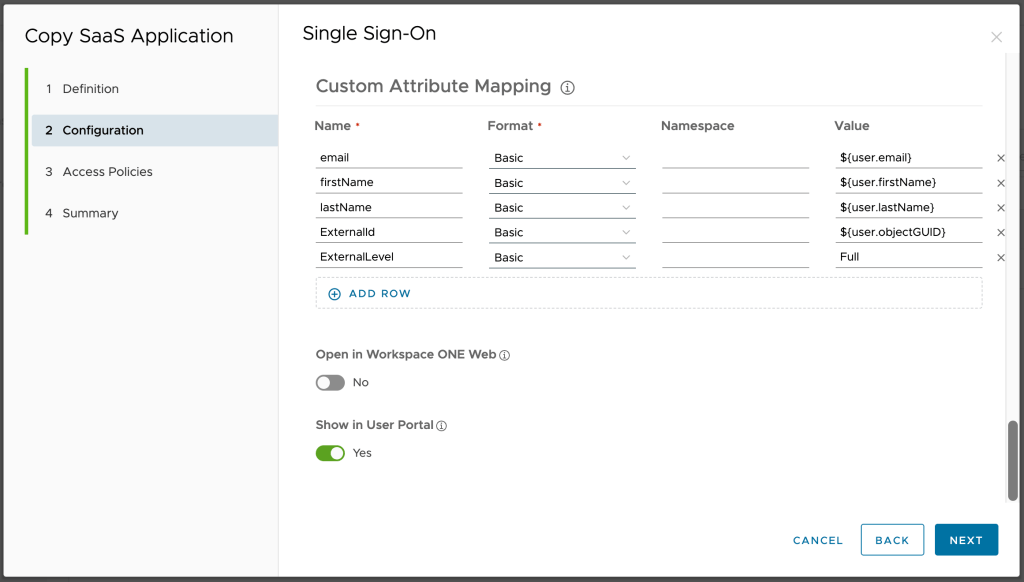
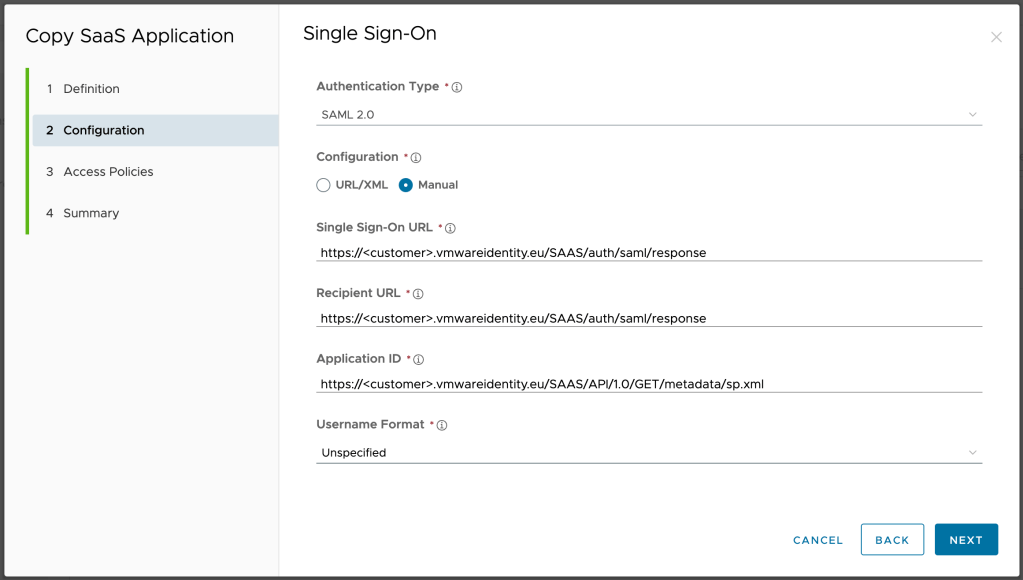
Let’s create a new web application and in the configuration step expand the advanced properties.

Go to custom attribute mapping and add the attributes that you want to pass along to the customer ws1 access. Two things worth mentioning here:

  1. Use a objectGUID as a external Id, this allows for user updates
  2. The ExternalLevel with a static value (full or readonly). This will be used to put the user in the correct group in the customer ws1 access tenant

Now save this web application, make a copy and there change the static text to readonly. Next assign both web applications to the correct user(s) and or groups and you are done with part one.

Automate the vlan creation — 13th Feb 2023

Automate the vlan creation

Ever had a distributed switch failing and need to roll back to a standard switch, realising that you need to manually create all the vlan on that standard switch?

The following script reads all the vms on a host and creates all the necessary vlan currently on the dvs on a new temporary standard switch.

# Create a hashed secure password file from the client input
# Read-Host -AsSecureString | ConvertFrom-SecureString | Out-File D:\secure-password.txt

$svc_account_username = "<username>"
$svc_account_password = get-content D:\secure-password.txt | ConvertTo-SecureString

# Parameter input variables
$vcenter = "<FQDN vCenter>"
$vcenter_host = "<FQDN Host>"

$portgroup_check = "dvv" #parameter to look for / name of the distributed switch vlan
$portgroup_replace = "stv" #parameter to replace with / name vlan on the new standard switch

$standard_switch = "<name new standard switch>"

$vms= @()
$dpgs = @()

Function OpenConnection {
    param(
     [Parameter()]
     [string]$vcenter,
     [Parameter()]
     [string]$username,
     [Parameter()]
     [securestring]$password
    )

    # Create a credential
    $cred = New-Object System.Management.Automation.PSCredential -ArgumentList ($username, $password) -ErrorAction Stop

    # Connect to vCenter
    if ($cred) {
        $connection = Connect-VIServer -Server $vcenter -Credential $cred -Force -ErrorAction Stop
    } else {
        $connection = $null
    }
    
    return $connection
}

Function GetHostVM {
    param(
     [Parameter()]
     [string]$vcenter_host
    )
    $vms = Get-VMHost -Name $vcenter_host -ErrorAction SilentlyContinue | Get-VM -ErrorAction SilentlyContinue | Select-Object -Property Name, @{N='PortGroupName';E={(Get-NetworkAdapter -VM $_).NetworkName -join '|'}}

    return $vms
}

Function GetVM {
    param(
     [Parameter()]
     [string]$vcenter_host
    )
    $vms = Get-VM -ErrorAction SilentlyContinue | Select-Object -Property Name, @{N='HostName';E={$_.VMHost.Name}}, @{N='PortGroupName';E={(Get-NetworkAdapter -VM $_).NetworkName -join '|'}} | Where-Object  {$_.HostName -like @($vcenter_host.Substring(0,7)+"*")}

    return $vms
}

Function CloseConnection {
    param(
     [Parameter()]
     [string]$vcenter
    )
    # Close vCenter connection
    Disconnect-VIServer -Server $vcenter -Confirm:$false
}

Function CheckPortGroup {
    param (
     [Parameter()]
     [string]$vcenter,
     [Parameter()]
     [string]$vcenter_host,
     [Parameter()]
     [string]$portgroup,
     [Parameter()]
     [string]$portgroup_check,
     [Parameter()]
     [string]$portgroup_replace,
     [Parameter()]
     [string]$standard_switch
    )

    $portgroup = $portgroup -replace $portgroup_check, $portgroup_replace

    $pg = Get-VirtualPortGroup -Server $vcenter -VMHost $vcenter_host -Name $portgroup -VirtualSwitch $standard_switch -ErrorAction SilentlyContinue

    return $pg
}

Function NewPortGroup {
    param (
     [Parameter()]
     [string]$vcenter,
     [Parameter()]
     [string]$vcenter_host,
     [Parameter()]
     [string]$portgroup,
     [Parameter()]
     [string]$portgroup_check,
     [Parameter()]
     [string]$portgroup_replace,
     [Parameter()]
     [string]$standard_switch,
     [Parameter()]
     [string]$vlan_id
    )

    $portgroup = $portgroup -replace $portgroup_check, $portgroup_replace

    $pg = New-VirtualPortGroup -Server $vcenter -Name $portgroup -VirtualSwitch $standard_switch -VLanId $vlan_id -ErrorAction SilentlyContinue

    return $pg
}

Function CheckStandardSwitch {
    param (
     [Parameter()]
     [string]$vcenter,
     [Parameter()]
     [string]$vcenter_host,
     [Parameter()]
     [string]$standard_switch
    )

    $svs = Get-VirtualSwitch -VMHost $vcenter_host -Name $standard_switch -Server $vcenter -ErrorAction SilentlyContinue

    return $svs
}

Function NewStandardSwitch {
    param (
     [Parameter()]
     [string]$vcenter,
     [Parameter()]
     [string]$vcenter_host,
     [Parameter()]
     [string]$standard_switch
    )

    $svs = New-VirtualSwitch -VMHost $vcenter_host -Name $standard_switch -Server $vcenter -ErrorAction SilentlyContinue

    return $svs
}

$connection = OpenConnection -vcenter $vcenter -username $svc_account_username -password $svc_account_password

if ($connection) {
    # Get the vm that are running on a host
    #$vms = GetHostVM -vcenter_host $vcenter_host
    $vms = GetVM -vcenter_host $vcenter_host


    # Get the distinct portgroups for those vm
    $dpgs =  $vms.portgroupname -split {$_ -like "*|*"} | Select-Object $_ -Unique | Sort-Object $_

    # Check if the temporary standard switch exists
    $vs_exists = CheckStandardSwitch -vcenter $vcenter -vcenter_host $vcenter_host -standard_switch $standard_switch

    if (!$vs_exists) {
        # Create the temporary standard switch
        $svs = NewStandardSwitch -vcenter $vcenter -vcenter_host $vcenter_host -standard_switch $standard_switch
    }

    foreach ($dpg in $dpgs) {
        # Check if the standard portgroup exists on the host
        if ($dpg -like @('*'+$portgroup_check+'*')) {
            $pg_exists = CheckPortGroup -vcenter $vcenter -vcenter_host $vcenter_host -portgroup $dpg -portgroup_check $portgroup_check -portgroup_replace $portgroup_replace -standard_switch $standard_switch

            if (!$pg_exists) {
                # Create standard portgroup on the host
                $svpg = NewPortGroup -vcenter $vcenter -vcenter_host $vcenter_host -portgroup $dpg -portgroup_check $portgroup_check -portgroup_replace $portgroup_replace -standard_switch $standard_switch -vlan_id $dpg.Substring($dpg.Length-3,3)
            }
        } else {
            Write-Host "Portgroup" $dpg "out of range." -ForegroundColor Red
        }
    }

    CloseConnection -vcenter $vcenter
} 

vRealize Log Insight update failed with meaningless error message — 6th Feb 2023

vRealize Log Insight update failed with meaningless error message

Last week we had to upgrade a vRealize Log Insight appliance which resulted time after time in a meaningless error.

After some general troubleshooting we ended up trying to update the appliance from the command line instead of using the GUI. There the error message did point us in the direction of the root file system where we got the message that we needed 16K of free space.

Upgrading from the command line can be done by using the following VMware KB article: https://kb.vmware.com/s/article/83225

Example: /usr/lib/loginsight/application/sbin/loginsight-pak-upgrade.py /tmp/VMware-vRealize-Log-Insight-8.3.0-17494646.pak

The issue with the root partition being full has its own VMware KB article: https://kb.vmware.com/s/article/82170

After applying the KB and resolving the issues with the log rotation the update went flawlessly.

Workspace One – Zero day onboarding using the magic link (Part 4) — 19th Jan 2023

Workspace One – Zero day onboarding using the magic link (Part 4)

The following Powershell returns a magic link that a new hire can use once, to connect to the Self Service Portal allowing him to change his password and enrol devices.

## Setting up some parameters ##

$AccessURL = '<access url>' ## Workspace ONE Access URL 
$ClientId = 'powershell' ## Client ID from Part 1
$ClientSecret = '<Shared Secret>' ## Shared Secret from Part 1

$text = "${ClientId}:${ClientSecret}" ## Combine the Client ID and the Client Secret

$base64 = [Convert]::ToBase64String([System.Text.Encoding]::UTF8.GetBytes($text))

$headers = @{
    "Authorization"="Basic $base64";
    "Content-Type"="application/x-www-form-urlencoded";
}

## Connecting to the API ##
$results = Invoke-WebRequest -Uri "https://$AccessURL/SAAS/auth/oauthtoken?grant_type=client_credentials" -Method POST -Headers $headers

$accessToken = ($results.Content | ConvertFrom-Json).access_token
$authHeader = @{"Authorization"="Bearer $accessToken";}

$global:workspaceOneAccessConnection = new-object PSObject -Property @{
        'Server' = "https://$AccessURL"
        'headers' = $authHeader
 } 

$global:workspaceOneAccessConnection    

## Creating Magic Token ##

## Setting Magic Token Headers ##
$MLheaders = @{
    "Accept"="application/vnd.vmware.horizon.manager.tokenauth.link.response+json";
    "Content-Type"="application/vnd.vmware.horizon.manager.tokenauth.generation.request+json"
    "Authorization"=$global:workspaceOneAccessConnection.headers.Authorization;
}

## Setting Magic Token Body ##
$MLjson = @{
    domain = "<domain>"
    userName = "<user e-mail>"
}

$MLbody = $MLjson | ConvertTo-Json

## Connecting to the API to get the Magic Link ##
$loginlink = Invoke-RestMethod -Uri "https://$AccessURL/SAAS/jersey/manager/api/token/auth/state" -Method POST -Headers $MLheaders -Body $MLbody

## Output the URL for the user ##
$loginlink.loginlink

The Magic token can only be used once but sometimes you need to remove the current token during tests.

Invoke-RestMethod -Uri "https://$AccessURL/SAAS/jersey/manager/api/token/auth/state/" -Method Delete -Headers $MLheaders