dewyser.net

solutions, scripting and more

Certificates (in the home lab) made easy – moving the chain and the key into vCenter appliance — 24th Aug 2023

Certificates (in the home lab) made easy – moving the chain and the key into vCenter appliance

For the next part we need two files, one is the chain.pem file from the previous part. The other is the private key from the issuing certificate authority.

If we go back to our pfSense console administrator and head to System > Certificate Manager under CAs we find our certificate for the issuing authority.
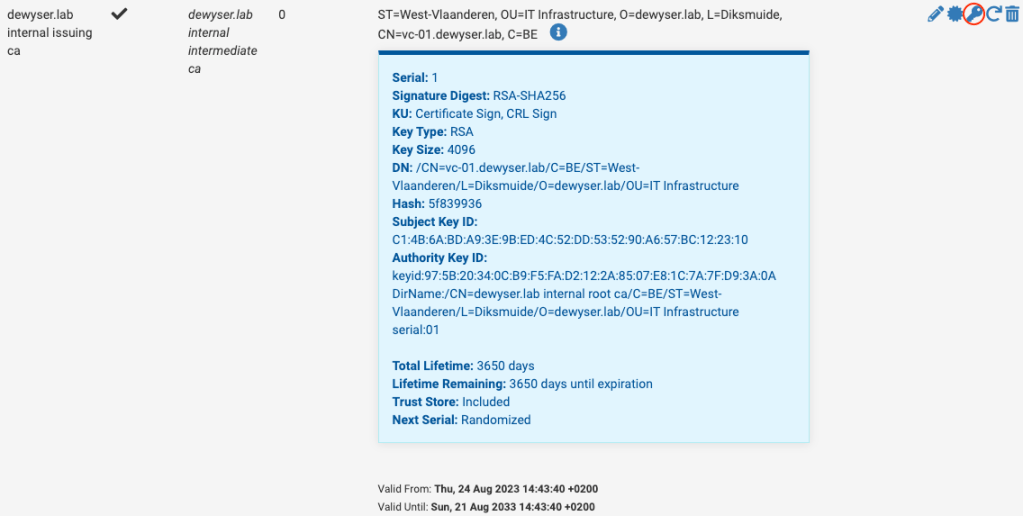
Using the key icon, marked in red in the image above we can export the private key of this certificate. Keep this safe as these key allows for the signing of new certificates.

Now we need to copy these two files to our vCenter Appliance. This can be done with scp on macOS using the following command:

scp ./chain.pem root@vc-01.dewyser.lab:/tmp/chain.pem
scp ./issuing.key root@vc-01.dewyser.lab:/tmp/issuing.key

With a successful copy we are ready for the next part.

Note: Depending on your security settings you would need to allow ssh/bash shell for your vCenter appliance. You can allow this using the VMware Appliance Management Interface (VAMI) https://vcenter-fqdn:5480/
Certificates (in the home lab) made easy – creating the (full)chain —

Certificates (in the home lab) made easy – creating the (full)chain

The next part is copying and pasting in a text editor. We want to create a text file consisting of all the relevant certificate authorities certificates, chained together.

Important: The order of the certificates in the file. First comes the issuing, then the intermediate and last the root certificate authority.

If you need to create a full chain file for an appliance where the certificate was issued by the issuing certificate authority, that certificate would come before the issuing authority.

The result would look something like the example below:

-----BEGIN CERTIFICATE-----
MIIGpTCCBI2gAwIBAgIBATANBgkqhkiG9w0BAQsFADCBnDEtMCsGA1UEAxMkZGV3
eXNlci5sYWIgaW50ZXJuYWwgaW50ZXJtZWRpYXRlIGNhMQswCQYDVQQGEwJCRTEY
MBYGA1UECBMPV2VzdC1WbGFhbmRlcmVuMRIwEAYDVQQHEwlEaWtzbXVpZGUxFDAS
/teZKPvfY0A+CFssJv7J1KMXW4ZalB/P/g==
-----END CERTIFICATE-----
-----BEGIN CERTIFICATE-----
MIIGuDCCBKCgAwIBAgIBATANBgkqhkiG9w0BAQsFADCBlDElMCMGA1UEAxMcZGV3
eXNlci5sYWIgaW50ZXJuYWwgcm9vdCBjYTELMAkGA1UEBhMCQkUxGDAWBgNVBAgT
D1dlc3QtVmxhYW5kZXJlbjESMBAGA1UEBxMJRGlrc211aWRlMRQwEgYDVQQKEwtk
8Pnnih0eCUNHTcEAbzUkS7M2PYfl0GSbmo+FrADNmiltv8+MJHgefYz2cmI=
-----END CERTIFICATE-----
-----BEGIN CERTIFICATE-----
MIIGtzCCBJ+gAwIBAgIIXD+frbdXLCowDQYJKoZIhvcNAQELBQAwgZQxJTAjBgNV
BAMTHGRld3lzZXIubGFiIGludGVybmFsIHJvb3QgY2ExCzAJBgNVBAYTAkJFMRgw
FgYDVQQIEw9XZXN0LVZsYWFuZGVyZW4xEjAQBgNVBAcTCURpa3NtdWlkZTEUMBIG
pNldtiW4TxAfR24faPQ5e0h9xC8MolGiXESI9OJNCepMGCnFBRznmmyFoA==
-----END CERTIFICATE-----

Save this as chain.pem for the next part(s).

Certificates (in the home lab) made easy – the issuing CA —
Certificates (in the home lab) made easy – the intermediate CA —
Certificates (in the home lab) made easy – the root CA —

Certificates (in the home lab) made easy – the root CA

I recently decided to rewrite this article from scratch. I made a blogpost about how easy it is to do this with pfSense before but I only touched setting up the root-ca part. In theory this is enough, certainly for a home lab. However it brings some complexity if you start with intermediate and issuing certificate authorities and if you need to export/import the complete chain. This series will cover all that.

So in this blog post we will set up the root certificate authority, easy-peasy.

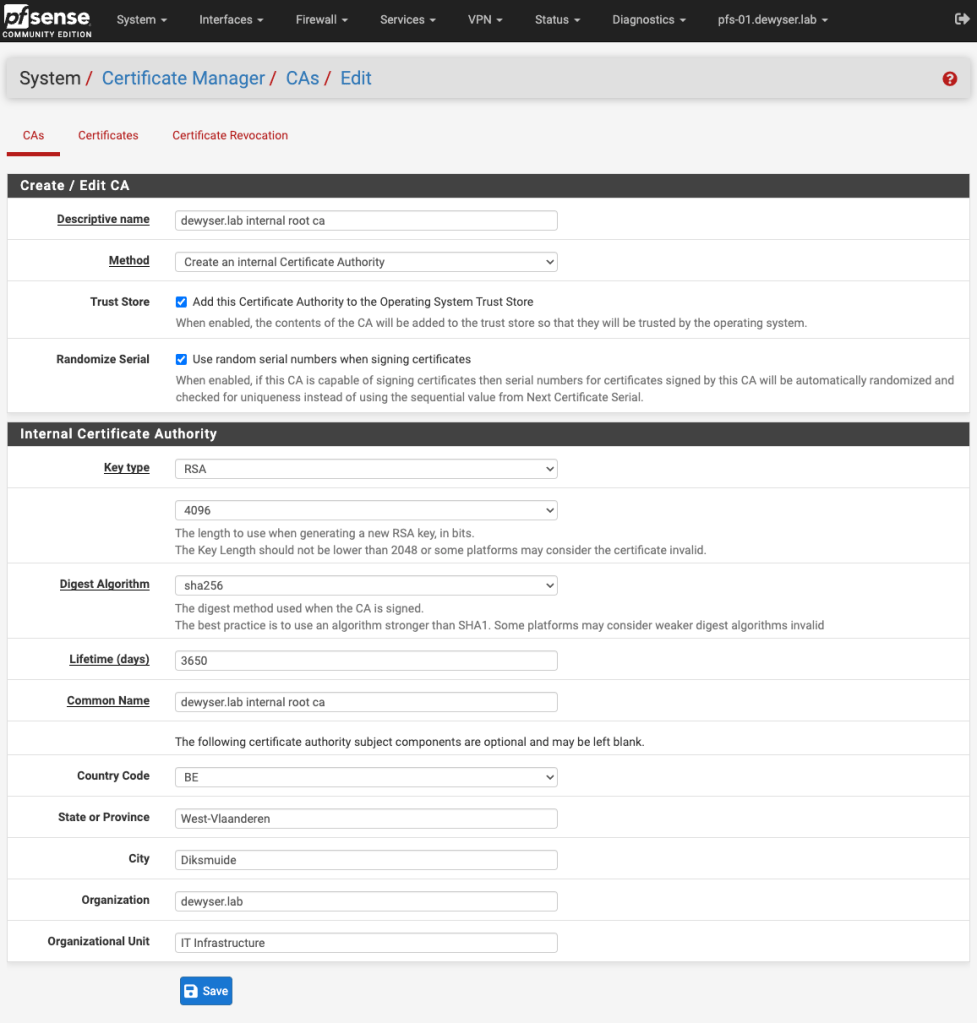
In the pfSense administration console head to System > Certificate Manager and under CAs click “+ Add”.

Select the appropriate key type and algorithm, fill in the values and hit Save.

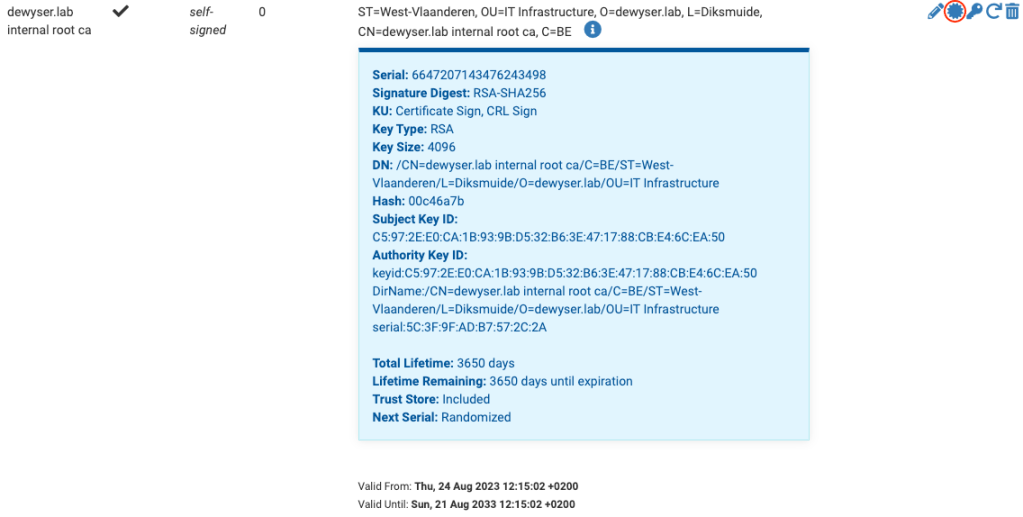
Basically this is it. We now have a working certificate authority. Trusting this certificate authority on your device would make your device trust all the certificates that will be issued by it (if the certificates follow the security standards).

We can export the certificate using the icon marked with the red circle. Now we can import the certificate in Windows in the “Trusted Root Certificate Authorities” folder or on macOS in the “System Keychain” and selecting “Always Trust”.