dewyser.net

solutions, scripting and more

Allow Carbon Black to run in background — 25th Apr 2025

Allow Carbon Black to run in background

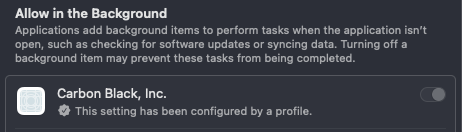
With the profile earlier in the series, a admin user would be able to disable Carbon Black from running in the background and so, stop it from running all together.

So, let us add two extra options to the profile by adding a version.

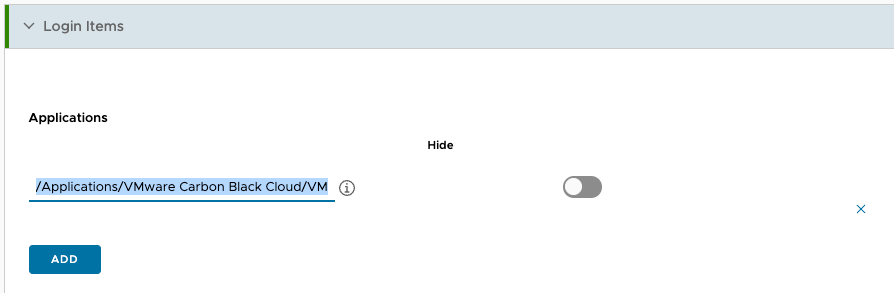
Open the profile and look for “Login Items”. Here you want to add Carbon Black to the applications section.

ex.: /Applications/VMware Carbon Black Cloud/VMware CBCloud.app

The second part is under the “Login and Background Items” section. Allow Carbon Black to run in the background based on the Team Identifier.

ex.: 7AGZNQ2S2T

For me, this resulted in an error and it seems to be a bug in the interface.

Go to the “System Extensions” section and remove the parts that are not in use. Heads up, they will get added again on saving the profile.

That’s it. Save and assign and you are good to go. Hope this helps!

New functions Get-WS1PolicyList and Get-WS1AuthenticationMethods — 10th Apr 2025

New functions Get-WS1PolicyList and Get-WS1AuthenticationMethods

I’ve added two new functions Get-WS1PolicyList and Get-WS1AuthenticationMethods to the module. Below also an example on how to use the module.

Import-Module ./Github/PSWorkspaceOneAccess/PSWorkspaceOneAccess.psd1 # -Verbose

& "$PSScriptRoot/Private/credentials.ps1"

if ([string]::IsNullOrEmpty($accessToken)) {
    $accessToken = Open-WS1AccessConnection -ClientId $clientId -ClientSecret $clientSecret -AccessURL $accessURL
}

$policies = Get-WS1PolicyList -AccessURL $accessURL -accessToken $accessToken
Write-Host "Policy count: $($policies.Count)" -ForegroundColor DarkYellow

$authMethods = Get-WS1AuthenticationMethods -accessURL $accessURL -accessToken $accessToken
Write-Host "Enabled authentication method count: $($authMethods | Where-Object enabled -eq $true | Measure-Object | Select-Object -ExpandProperty Count)" -ForegroundColor Red

$users = Get-WS1User -AccessURL $accessURL -AccessToken $accessToken
Write-Host ( $users | Where-Object userName -eq "rsmoot" | Select-Object -ExpandProperty name ) -ForegroundColor Green

$not_me = Get-WS1UserByUsername -AccessURL $accessURL -AccessToken $accessToken -Username "rsmoot"
$not_me | Select-Object -ExpandProperty name | Select-Object @{Name = "Firstname"; Expression = { $_.givenName } }, @{Name = "Lastname"; Expression = { $_.familyName } } | Format-Table

$directory = Get-WS1Directory -AccessURL $accessURL -accessToken $accessToken
$directory = $directory | Where-Object type -eq "ACTIVE_DIRECTORY_LDAP"
Write-Host "DirectoryId: $($directory.directoryId)" -ForegroundColor Blue

$directoryInfo = Get-WS1DirectoryById -AccessURL $accessURL -AccessToken $accessToken -DirectoryId $directory.directoryId
Write-Host "DirectoryId: $($directoryInfo.directoryId)" -ForegroundColor Cyan

Remove-WS1MagicToken -AccessURL $accessURL -AccessToken $accessToken -Username $not_me.userName
$magicToken = Get-WS1MagicToken -AccessURL $accessURL -AccessToken $accessToken -Domain $domain -Username $not_me.userName

$magicToken = Reset-WS1MagicToken -AccessURL $accessURL -AccessToken $accessToken -Domain $domain -Username $not_me.userName

Write-Host "$($magicToken.replace($accessURL,"<accessURL>"))" -ForegroundColor Red

Remove-Module PSWorkspaceOneAccess # -Verbose

This would result in the following output:

Rudiger Smoot

DirectoryId: f37e07c3-3d2d-4e82-85b1-5bad6ee60d5d

https:///SAAS/auth/login?token=eyJpZCI6IjJlY2U3ZTc2LTk1YTgtNDBkOS1iMDdjLTAxOGQzMDljNWIzYyIsInZhbHVlIjoicXlTUEcyd3kzZHRnZXVWbjhMemtZR3Z3eHg4VWhjYUkiLCJzaWduYXR1cmUiOiJhbW1KaGl4eWtrZUlVTEMvRUxQaHRMRUpteFpraGZIa1d1RmlkeWRpUm9QRkZ3Kzk3OU5VanRwL0FkdmNMOFJUM0d6akUzRlFObU5rRUlONWhhSWtVTTFqMjIrckMwYmIxRjBRSThReUF3Y1J6ZklvTGY0OGdVSXhFdmY5Y3dLK1RPNy9oWWlEMFpYN2YyR1hQSnJYaUZTL3FEZWdKOFN4UHpPMXlYV05heTE4eEpEWE92SjZqcUdad2JWU3RQZlIreUNwUW52RDJsWGZ1dCtTbElBQXVBaU1kSkdkRVJUMC9ESjZCQm5iZmZINnF6R0tSSmZFamVMQzF5NU5aazRTem8yMHJHQjFUM1p4NXdEanQ0UVR3UkFUMWRTbTUvcVJnWTBnQ3g4NTZ4Vkkwek8yeUN1ZUxLb0FkcW5ycWZSNDlhQVQ0ODYydkI4dHlPOUp5enR5b28rYmFuQzlJeXNBckl1dmgzZFVsYmlLaTNnb29EN2tHd0MwbDh2d21CZEI0R1RFVjJhMEVlTGw4MmVFK25rTFpZV2NMSGtTRUJLMXVmNGhmZ24zWUVPMTVVazN6enFQYVJnVy9qY1I2ejFxSFVLbm1XeVRiZUpKeG40NFhtdHhxYTUvL0I2MVpjWVdsY2UxUCtwLzM2ekRXSDk2K3J5SDRrUStaU2hHM1IveDlST3V4T3hQeHJHTUxnZC9SdE1WeTR3VGVicU5pLzdNeEpQalNCdUdCWll2UTN2RjNmb1BxZkFxaVV3VjlUa0p2UjduTkc5aU90TElsZWRVakQxN0s4TXRUVk0rQjVqWEF4eUtxRVNNamJFNEk1Ry9zTmpUdElOMVo3OVBKYVBJbWYrMGNib1pqMWx2WHpFZGhoZ1pKTE16MUJPMWFlOEVKSlVvaGlYOEdIVT0ifQ%253D%253D&userstore=Userstore_f37e07c3-3d2d-4e82-85b1-5bad6ee60d5d

You can find the latest version of the module on my github page.

New command Get-WS1AuditInformation — 10th Jan 2025

New command Get-WS1AuditInformation

Added a new command Get-WS1AuditInformation to the module PSWorkspaceOneAccess that retrieves a detailed audit report for Workspace ONE Access events and replaces Get-WS1LoginAuditForUser, WS1LoginAuditForDateRange and Get-WS1AuditReport. It allows filtering by object type, date range and username. The object returned is no longer json but is now a PowerShell object.

The updated module is available on my GitHub.

Unofficial Powershell module for managing Workspace ONE Access — 26th Dec 2024

Unofficial Powershell module for managing Workspace ONE Access

I’ve been working on an Unofficial Powershell module that simplifies interactions with VMware Workspace ONE Access. It offers a set of functions to manage OAuth authentication and token retrieval for various Workspace ONE Access operations. This module is particularly useful for administrators and developers integrating Workspace ONE capabilities into their automation workflows.

You can find the first version of the module on my GitHub page or in the Powershell Gallery.

The module currently contains the following commands:

Open-WS1AccessConnection: Establishes an OAuth connection using client credentials and retrieves an access token.

Get-WS1MagicToken: Retrieves a magic token for service-to-service authentication.

Reset-WS1MagicToken: Resets the magic token, generating a new one for secure authentication.

Remove-WS1MagicToken: Revokes an existing magic token.

Add-WS1User: Adds a new user to Workspace ONE Access.

Update-WS1User: Updates user details in Workspace ONE Access.

Remove-WS1User: Removes a user from Workspace ONE Access.

Get-WS1User: Retrieves a list of users from Workspace ONE Access.

Get-WS1UserByUsername: Retrieves a specific user from Workspace ONE Access by username.

Get-WS1Directory: Retrieves information about all directories configured in Workspace ONE Access.

Get-WS1DirectoryById: Retrieves detailed information about a specific directory by its ID.

Sync-WS1Directory: Triggers a synchronization for a specific directory in Workspace ONE Access.

Get-WS1LoginAuditForUser: Retrieves login audit logs for a specific user within a given time range.

Get-WS1LoginAuditForDateRange: Retrieves login audit logs for all users within a specified date range.

Get-WS1AuditReport: Retrieves a detailed audit report for Workspace ONE Access events.

Let me know what possible additions can be added in the comments or make suggestions in the Omnissa Community.

Enable Carbon Black content filter on macOS — 26th Oct 2024

Enable Carbon Black content filter on macOS

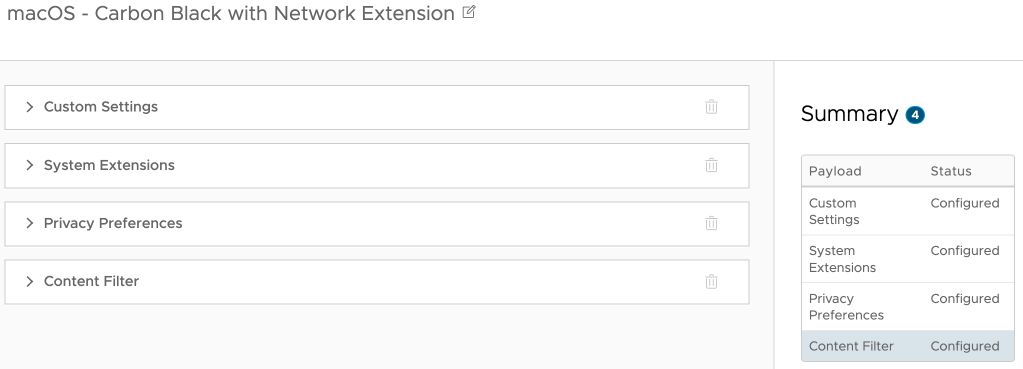
I recently came across a Workspace ONE UEM profile for Carbon Black that only had the system extension enabled. True, the first parts are maybe better documented, but to get the content filter working you also need to enable that, so in total you need 4 payloads:

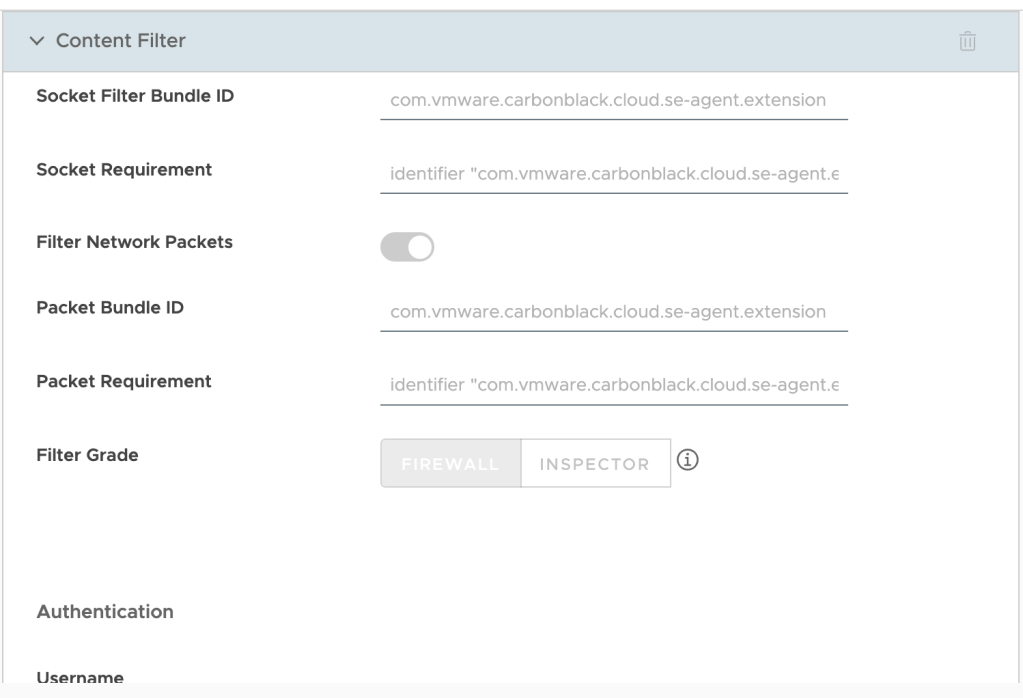
So, I made a copy of the profile and added the content filter part. Below the screenshot you’ll find the different parts to copy paste into the profile:

Filter type: Plug-in
Filter Name: VMware Carbon Black Cloud Network Extension Filter
Identifier: com.vmware.carbonblack.cloud.se-agent
Filter WebKit Traffic: Enabled
Filter Socket Traffic: Enabled
Socket Filter Bundle ID: com.vmware.carbonblack.cloud.se-agent.extension
Socket Requirement: identifier "com.vmware.carbonblack.cloud.se-agent.extension" and anchor apple generic and certificate 1[field.1.2.840.113635.100.6.2.6] /* exists */ and certificate leaf[field.1.2.840.113635.100.6.1.13] /* exists */ and certificate leaf[subject.OU] = "7AGZNQ2S2T"
Filter Network Packets: Enabled
Packet Bundle ID: com.vmware.carbonblack.cloud.se-agent.extension
Packet Requirement: identifier "com.vmware.carbonblack.cloud.se-agent.extension" and anchor apple generic and certificate 1[field.1.2.840.113635.100.6.2.6] /* exists */ and certificate leaf[field.1.2.840.113635.100.6.1.13] /* exists */ and certificate leaf[subject.OU] = "7AGZNQ2S2T"

You can validate the profile in macOS settings under Network > VPN & Filters > Filters & Proxies. There you should see the Carbon Black Content Filter as Enabled.