
For the next part we need two files, one is the chain.pem file from the previous part. The other is the private key from the issuing certificate authority.
If we go back to our pfSense console administrator and head to System > Certificate Manager under CAs we find our certificate for the issuing authority.
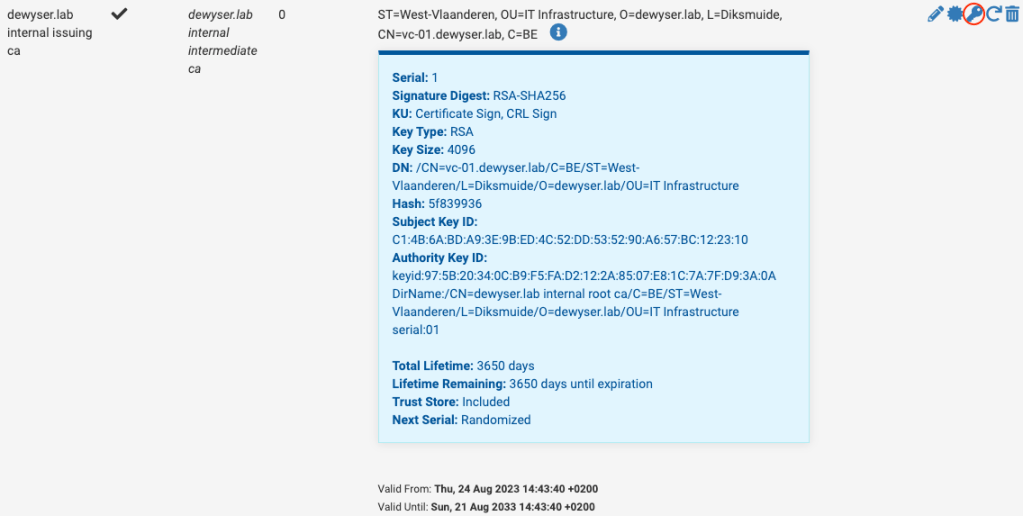
Using the key icon, marked in red in the image above we can export the private key of this certificate. Keep this safe as these key allows for the signing of new certificates.
Now we need to copy these two files to our vCenter Appliance. This can be done with scp on macOS using the following command:
scp ./chain.pem root@vc-01.dewyser.lab:/tmp/chain.pem
scp ./issuing.key root@vc-01.dewyser.lab:/tmp/issuing.key
With a successful copy we are ready for the next part.
Note: Depending on your security settings you would need to allow ssh/bash shell for your vCenter appliance. You can allow this using the VMware Appliance Management Interface (VAMI) https://vcenter-fqdn:5480/


 dewyser.net